QD2 Terminal user instructions and help
- Power On
- Hold the power button on the side of the terminal until the screen turns on.
- Connect to Wi‑Fi (Recommended)
- Go to Settings → WLAN
- Turn Wi‑Fi ON
- Select your network and enter the password.
- Open Aura
- Tap Aura – this is your payment application.
- Run a Sale
- Tap Sale
- Enter the amount
- Enter the Invoice # (optional) – just press Enter to skip
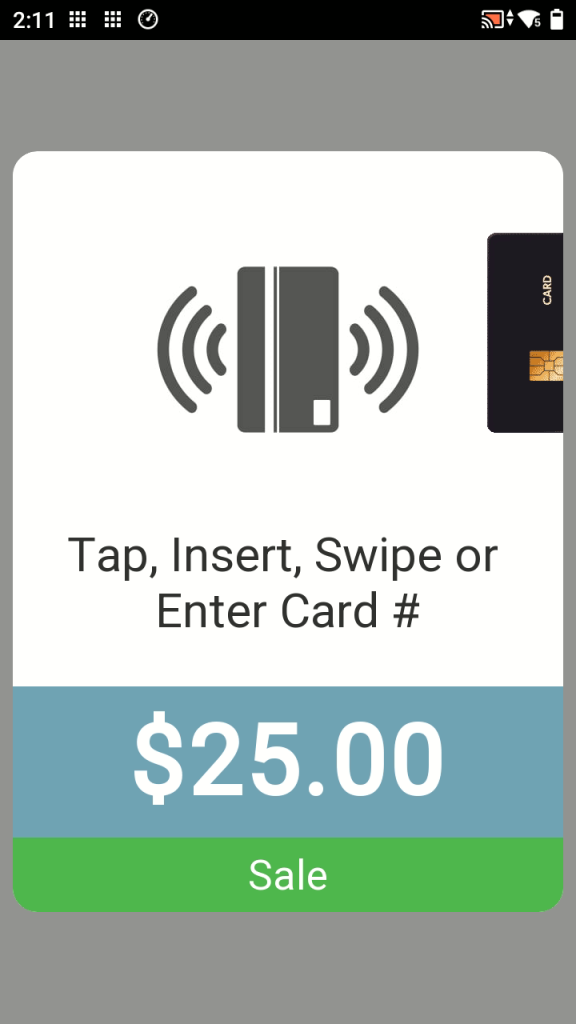
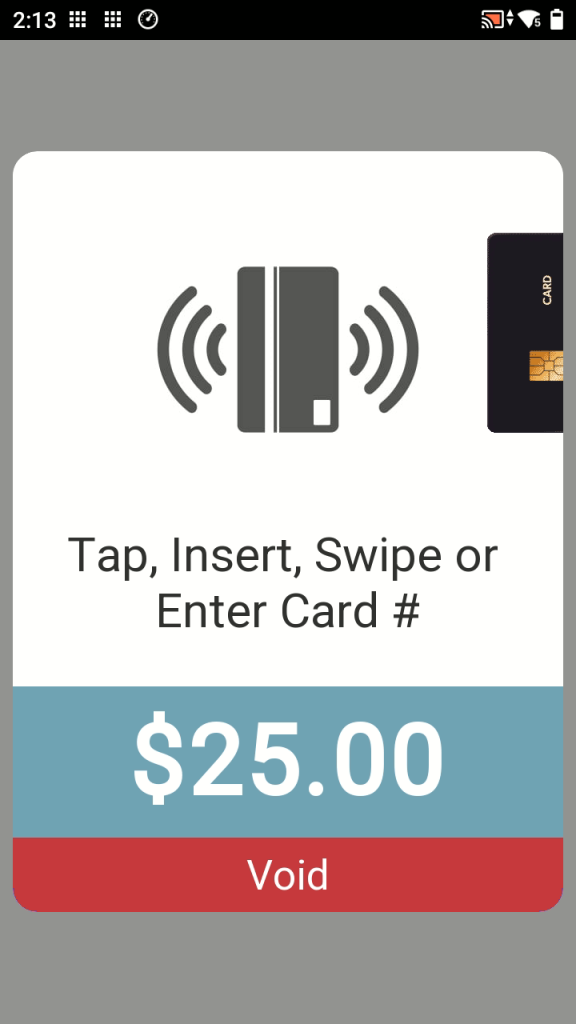
- Have the customer tap, insert, or swipe their card.
- Wait for response (approved or declined)
- Receipt prints automatically.
Important: Transactions cannot be deposited until the Daily Batch is settled.
5. End of Day – Settle the Batch
a. Tap
Favourites → Settle Daily Batch.
Settling the batch sends the day’s payments to be deposited. A good practice is to settle the batch before powering the terminal off. There’s no harm in trying to settle the batch as it will tell you that there are no funds to settle.
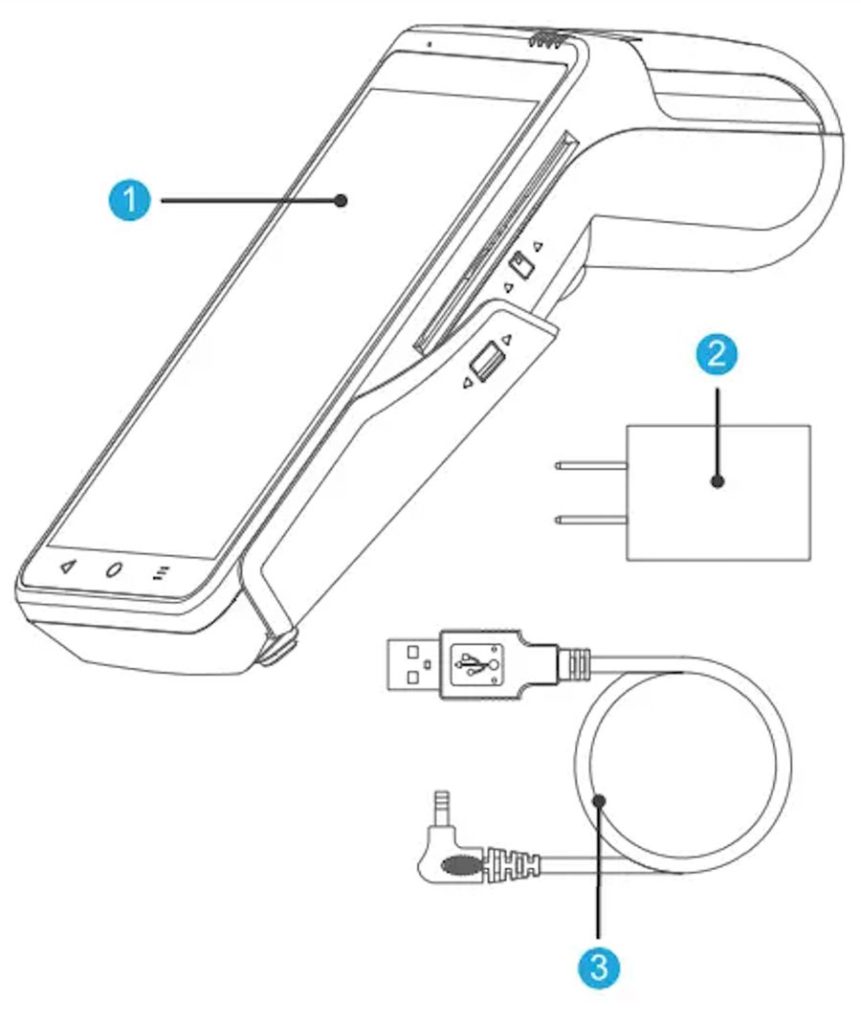
Your SportsPay terminal shipment includes:
- SportsPay payment terminal
- Power adapter
- Charging cable
If anything is missing or damaged, please contact SportsPay Support.
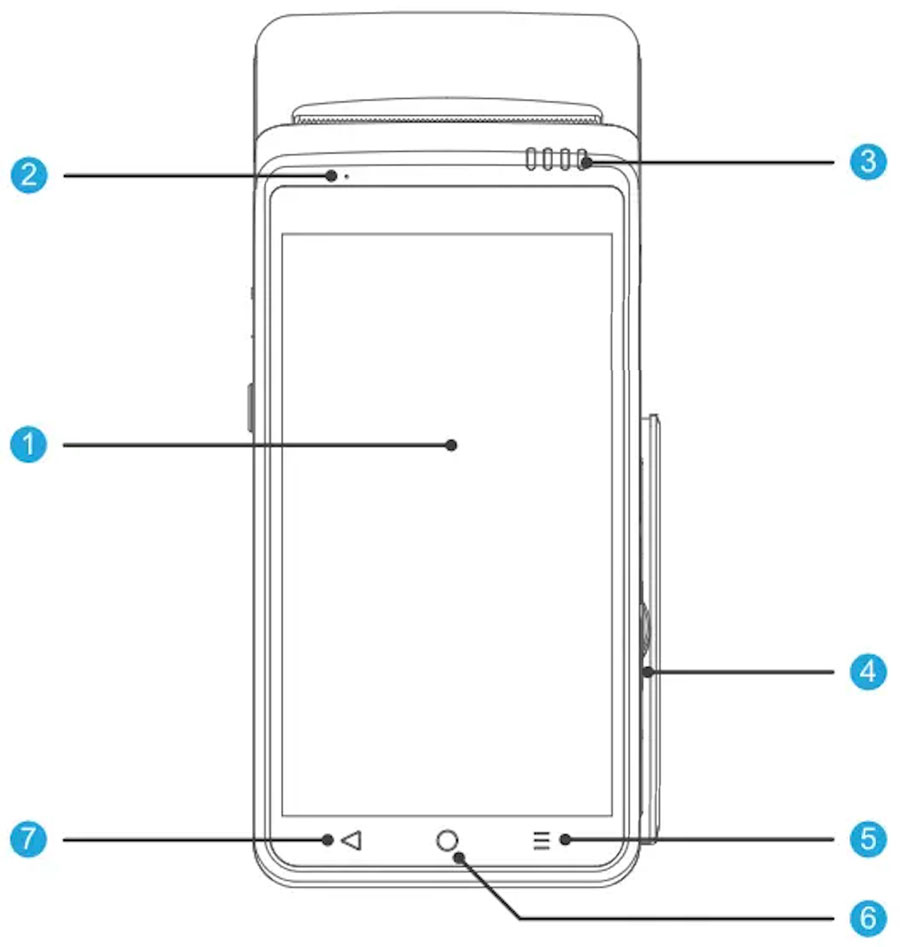
Terminal Overview
Front
- Touch Screen
- Charging indicator light
- Status indicator light
- Magnetic card reader (for swipe)
- Menu button
- Home button
- Return button
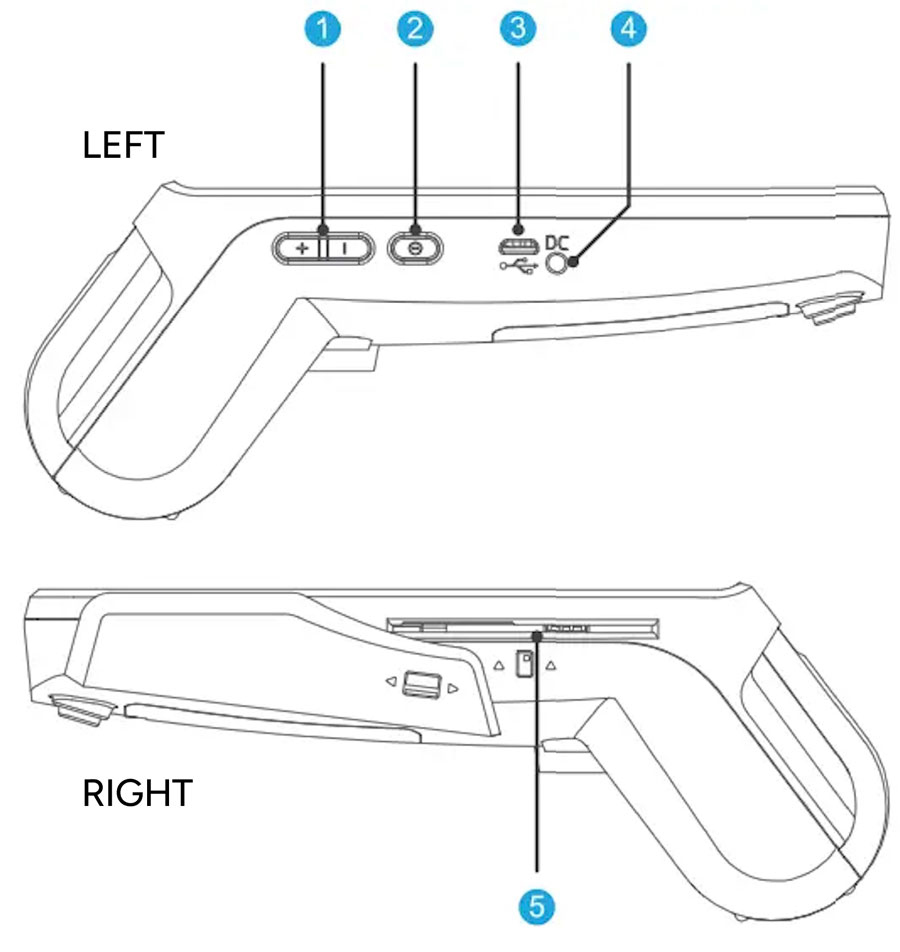
Side
- Volume keys
- Power key
- USB port (used by support if needed)
- Charging port
- Chip card slot
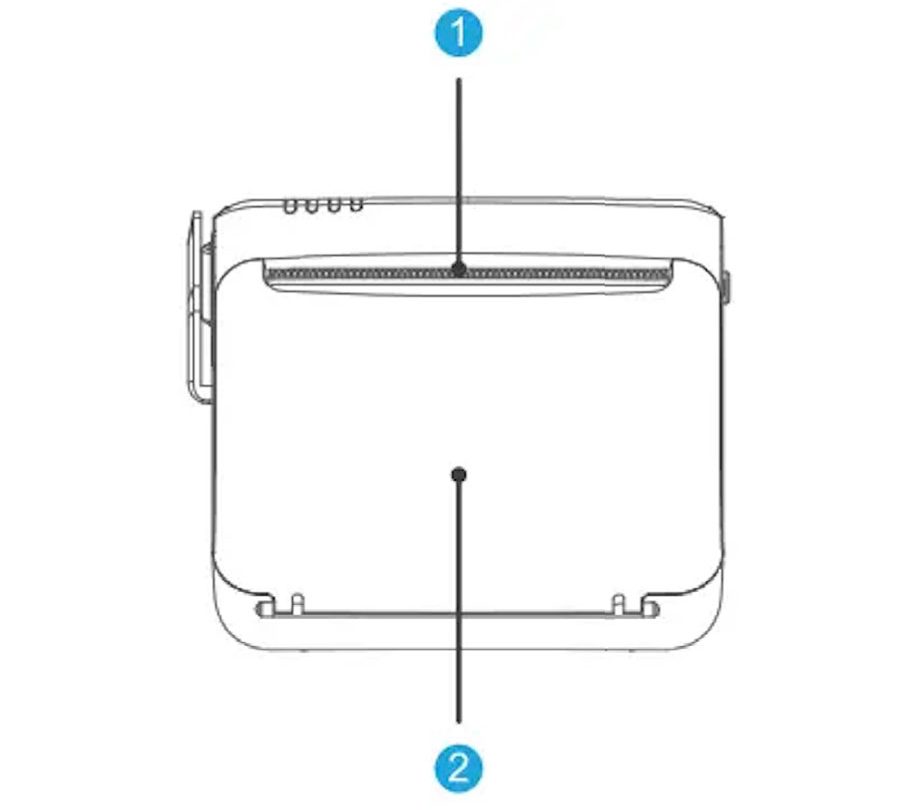
Top
- Receipt printer
- Contactless card reader and printer latch
Buttons & Navigation
- Power (side): On / Off / Restart / Sleep
- Volume (side): Adjust volume
- Android buttons (bottom):
Back
Home (exits Aura)
Menu
Power Functions
- Power On: Hold power button
- Power Off / Restart: Hold power button → select option
- Sleep Mode: Press power button once
BATTERY & CHARGING
shows remaining charge
appears when charging
Best Practices:
- Use the charger that came in the box
- Charge overnight if needed
- Don’t leave plugged in all the time
CONNECTIVITY
Wi‑Fi vs 4G
not connected
connected (signal strength shown)
- Wi‑Fi: Faster, more reliable indoors (recommended)
- 4G: Backup when Wi‑Fi unavailable
Connect to Wi‑Fi
- Open Settings
- Tap WLAN
- Turn Wi‑Fi ON
- Select network and enter password
PRINTER & PAPER
Paper Type
- 58mm thermal paper (2 ¼ inch wide)
How to Load Printer Paper
- Pull forward the printer latch (tap icon)
- Open the paper compartment
- Insert roll so paper feeds from the bottom
- Pull paper slightly out
- Close latch firmly until it clicks
No Paper Mode
No Paper Mode allows payments to continue without receipt paper.
- What this means
a. Payments process normally.
b. The terminal screen will show the payment response (approved or declined).
c. No receipt prints until paper is reloaded
- When This Happens
a. Paper runs out.
b. Printer cover is open.
c. Paper loaded incorrectly.
- What To Do
- Reload paper as soon as possible.
- Use Reprint Receipt if a copy is needed.
Fix Printing Problems
- Verify paper direction
- Remove torn or creased paper
- Ensure printer cover is fully closed
- Use the
Receipt Feed in Aura to test printing
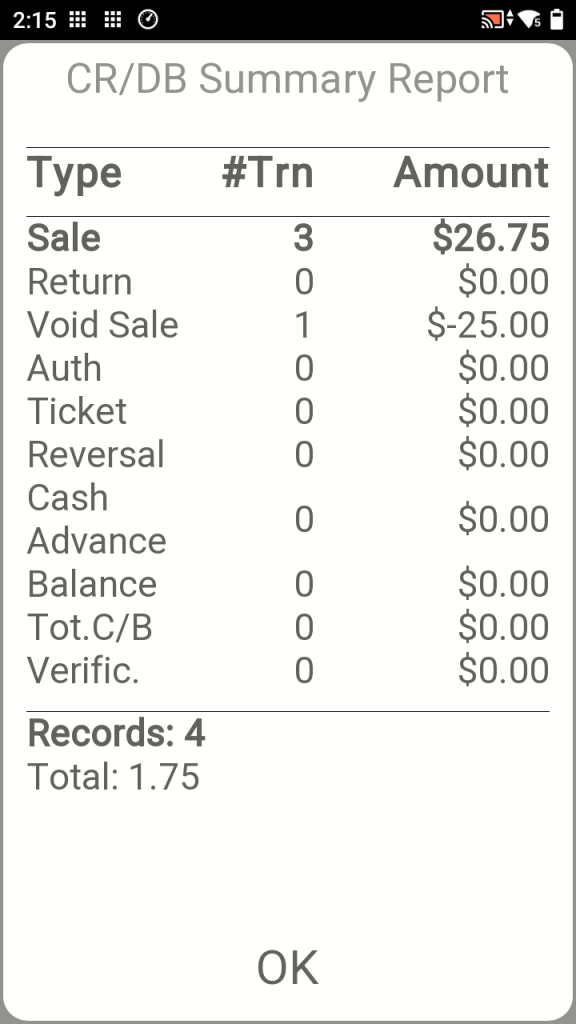
Favourites → Reports → Enter manager password,
Which report should I use?
- Totals only → Daily Report
- Totals + counts → Summary Report
- Find a transaction → Detailed Report
Note: Once the batch is settled, you can no longer view individual transactions. After settlement, only summary totals for that batch are available.
DAILY REPORT
- Prints automatically on the receipt printer (no on-screen view)
- Shows totals for the current day/batch
- Lists each transaction (will show the Invoice # if there is one)
Use this if you just want a quick printed summary.
SUMMARY REPORT
- View a summary of all transactions in that batch
- View on screen or print
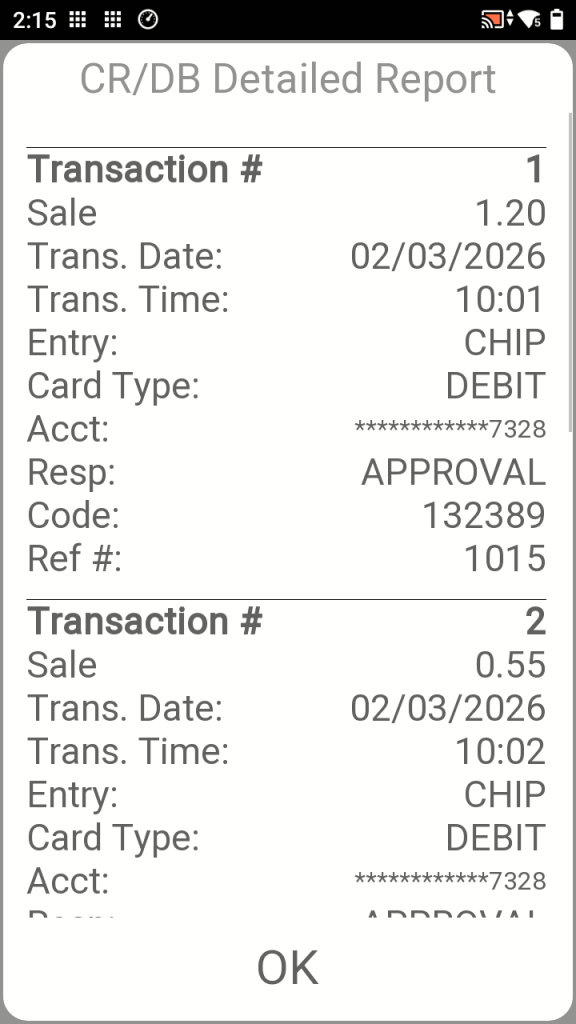
DETAILED REPORT
- View individual transactions
- View on-screen or print
- Helpful for locating a transactions approval code, transaction number or amount.
HISTORY REPORT
- Prints summary of settlement for the date range selected (no on-screen view)
- Ensure paper is loaded
REPORT GENERATOR
- Prints selected report (no on-screen view)
- Ensure paper is loaded
END OF DAY – SETTLE DAILY BATCH (VERY IMPORTANT)
Settlement sends the transactions for deposit.
Favourites -> Settle Daily Batch- Enter manager password
- Confirm totals
- Settlement report prints
Deposits will be delayed until settlements are completed.
Deposits & Reporting Timeline
Funds are deposited according to your SportsPay deposit schedule. Transaction details appear in pHQ the next business day after settlement (limited detail).
The terminal includes a built-in self-check to test hardware and connectivity.
How to Run Self-Check
- From the home screen, open Settings
- Select Self-Check
- Follow on-screen prompts
The self-check can test:
- Screen
- Printer
- Battery
- Network connectivity
- Buttons and hardware components
Terminal Frozen: Restart terminal
No Internet: Check Wi‑Fi / move location / restart
Won’t Print: Reload paper / close cover firmly
Declined Card: This is a bank decision, not a terminal issue
Duplicate Transaction Message: Wait, check receipt, do not retry immediately
- Clean with soft, dry cloth only
- Do not spray liquids
- Do not install other apps
- Do not share manager password
Telephone: 1‑877‑880‑0321
Email: support@sportspay.com
Scan the QR code on your terminal for the latest instructions.
Opening Aura
From the home screen, tap Aura and wait for it to load. When on the screensaver, tap the screen or press any key to start.
Aura Screen Overview
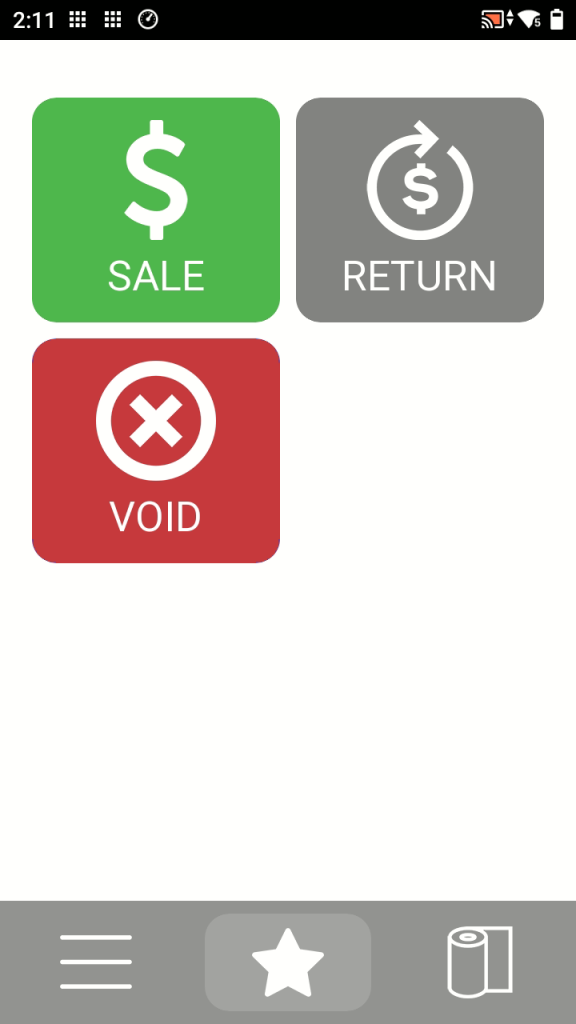
Payment Types: Sale | Refund | Void
Bottom Icons:
Favourites – primary menu
Menu – advanced options
Receipt – paper feed
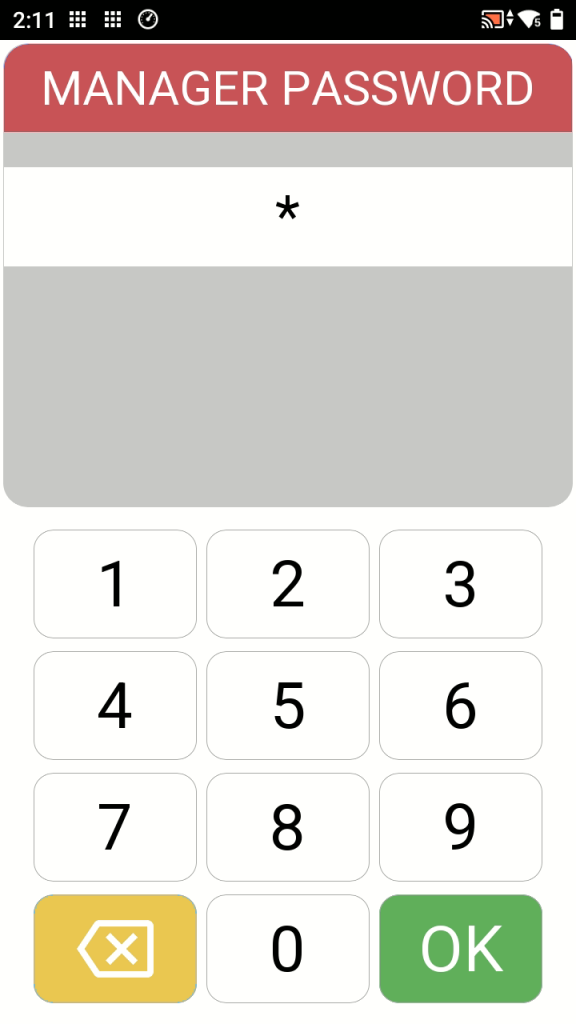
Manager Password
Some actions require a manager password. The default password is 1234.
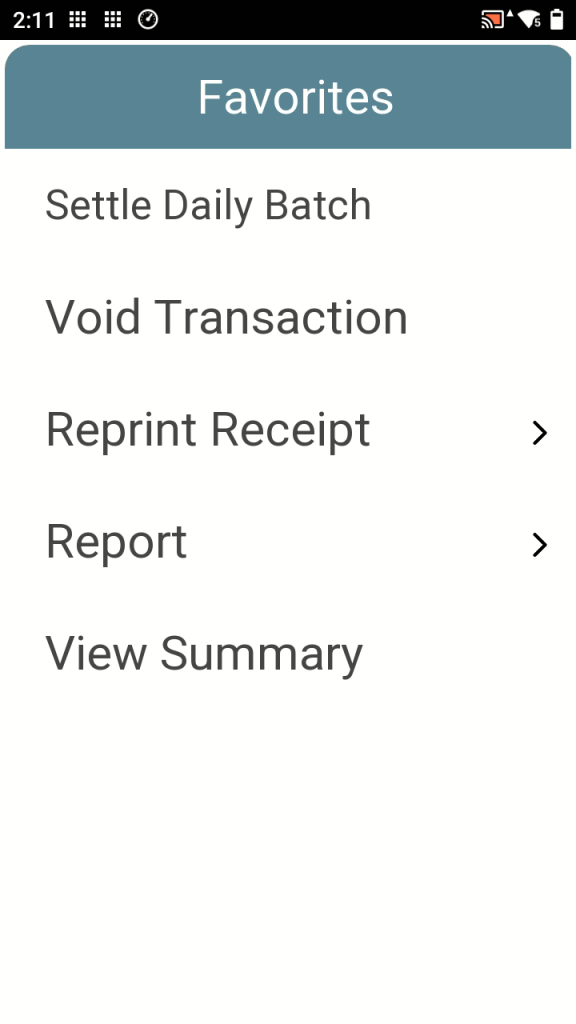
Favourites
This is where you will find any other function you want to perform:
- Settle daily batch
- Void transaction
- Reprint Receipt
- Report
- View Summary
SALE
- Tap Sale.
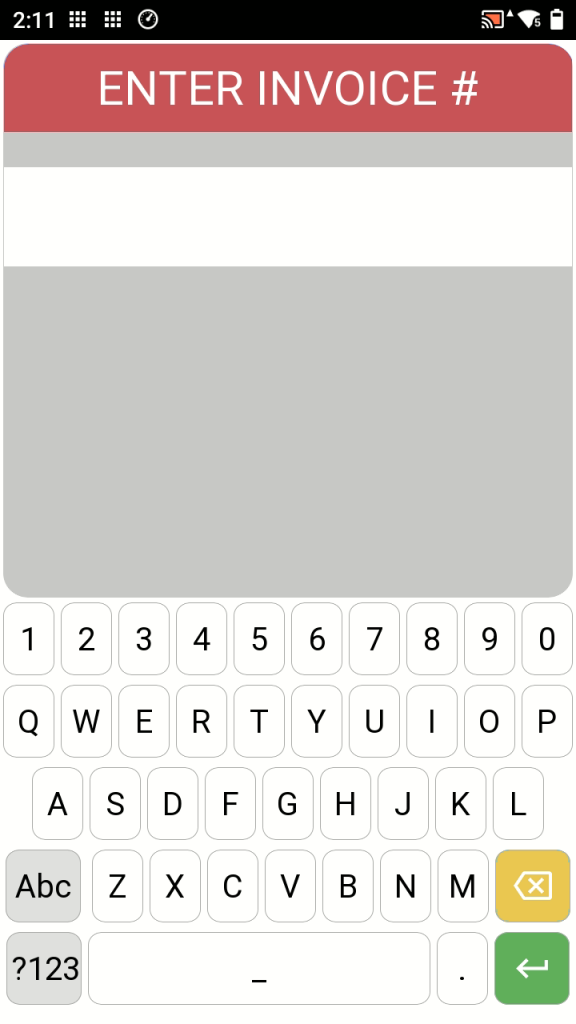
- Enter the Invoice #, if prompted, or press Enter to skip.
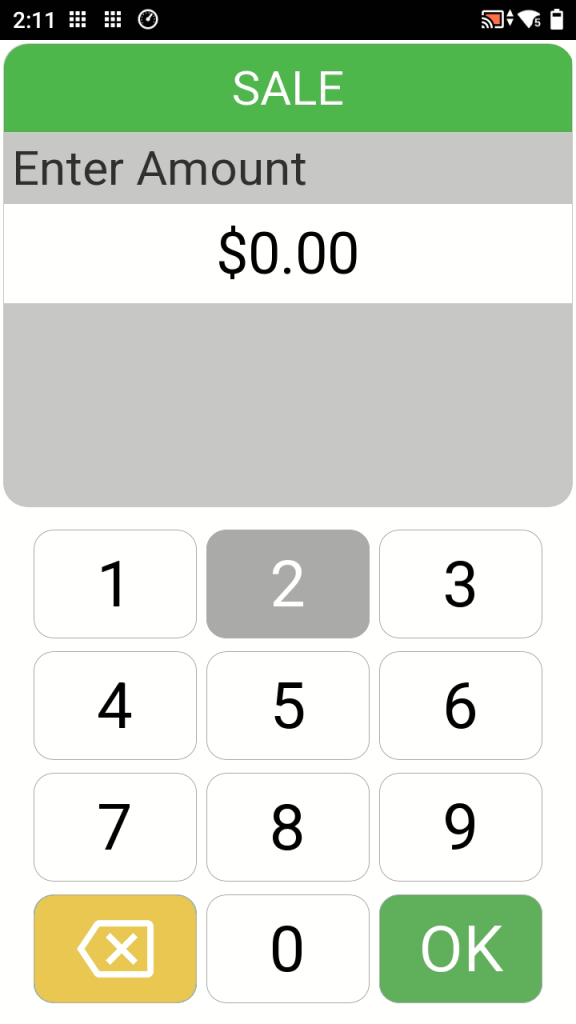
- Enter the amount (for example: 25.00).
- Press OK.
- Customer taps, inserts, or swipes their card.
If inserted, customer follows PIN prompts - Wait for response – Approved or Declined.
- Receipt prints (merchant & optional customer copy).
✅ Receipt will show Approved or Declined.
MANUAL CARD ENTRY
- Tap Sale
- At card prompt, tap
Menu - Select Manual Entry
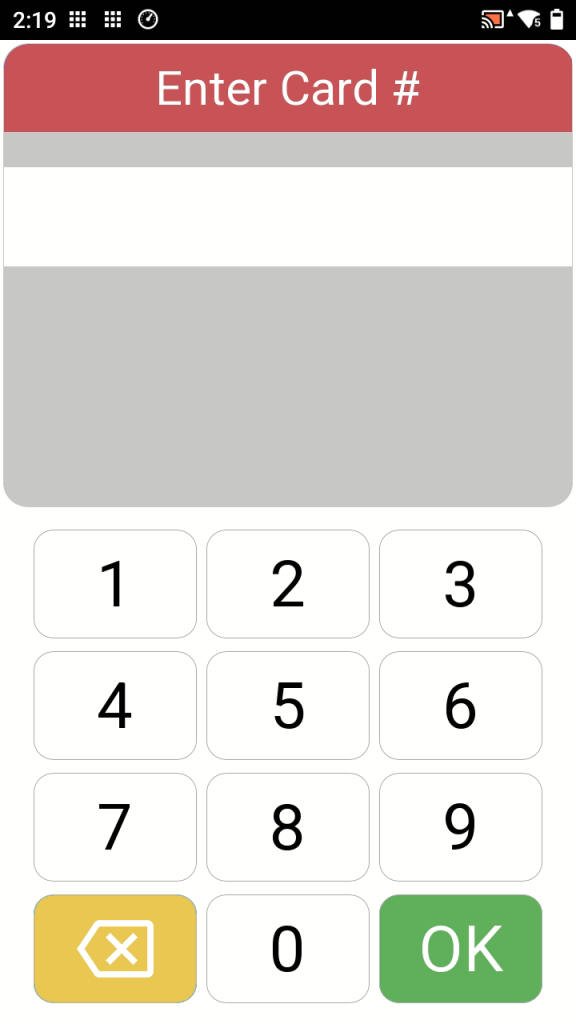
- Enter card number
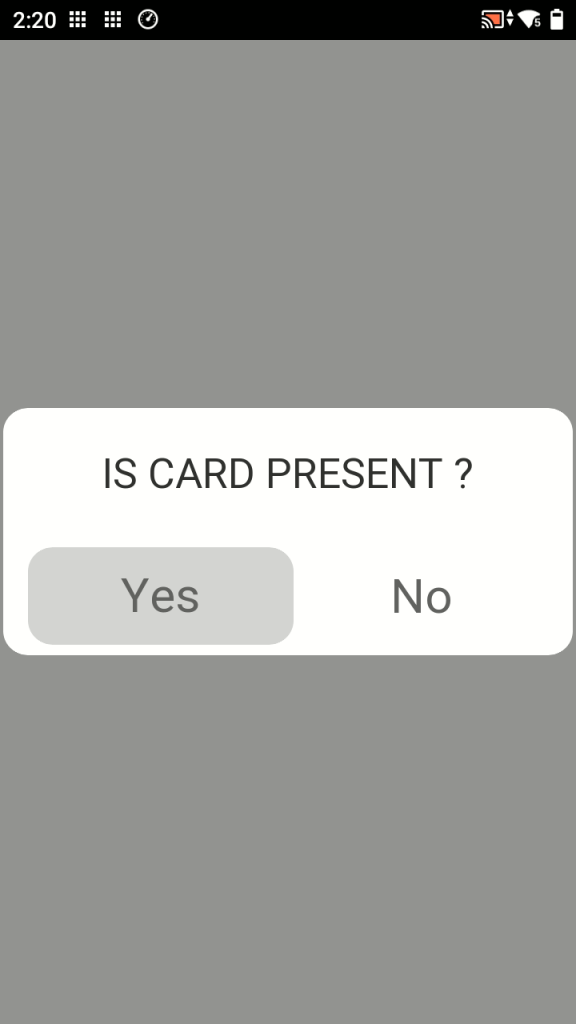
- When asked if card is present, select No (Manual entry transactions are processed as card-not-present
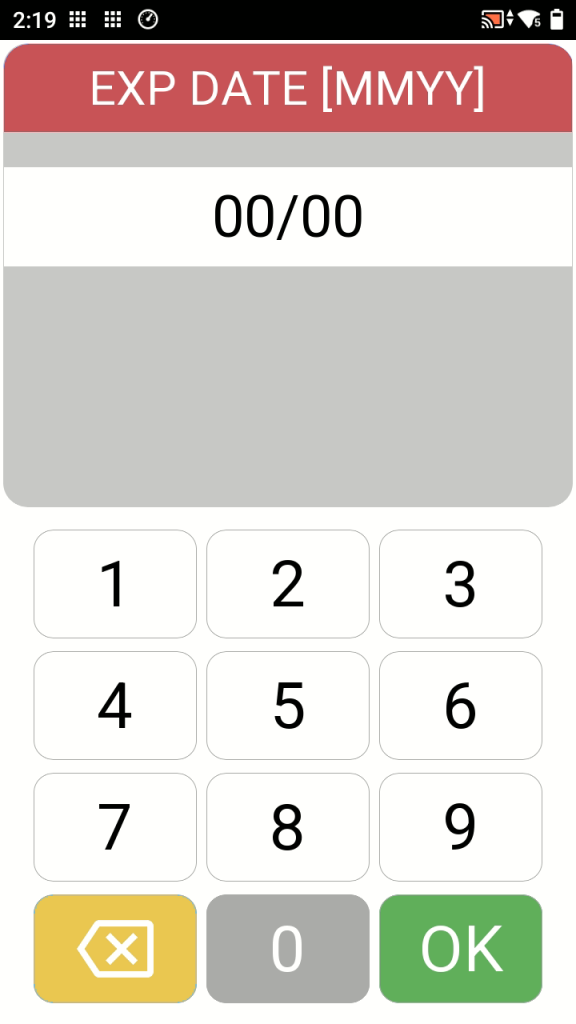
- Enter expiration date and CVV (on back of card)
- Press OK
- Wait for response – Approved or Declined
- Receipt prints (merchant & optional customer copy)
IF A CARD WILL NOT TAP
- Try inserting the chip
- If chip fails, swipe (note: some Canadian cards no longer allow swipe if card has a chip)
VOID TRANSACTION (Same Day Only)
Quick rule
- Same day = Void
- After settlement = Refund
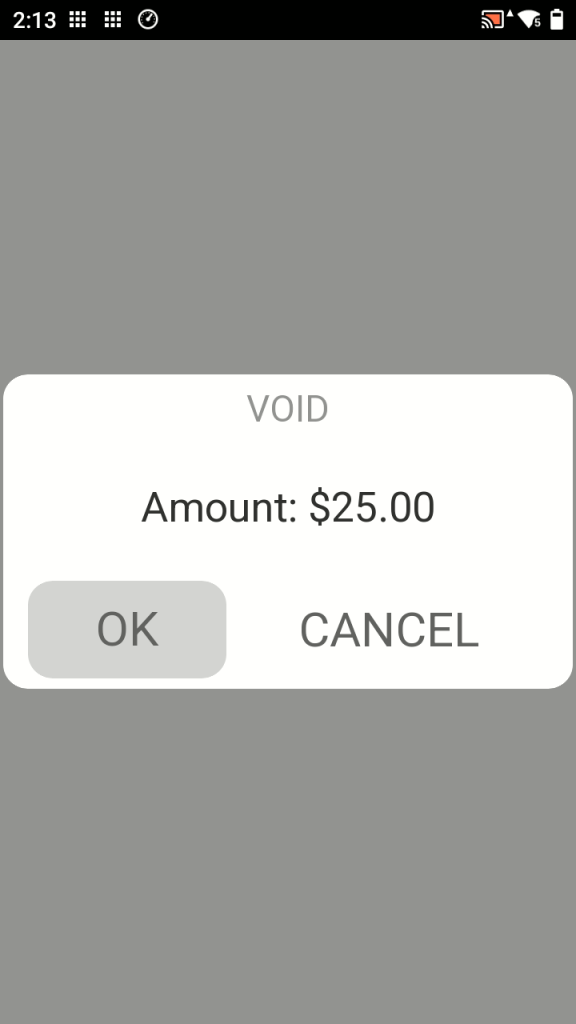
A transaction can only be voided before settlement and requires the original card.
If the card is unavailable, the transaction must be refunded after settlement.
Option 1: Void from Favourites
- Tap
Favourites → Void Transaction - Enter manager password
- Choose how to identify the transaction you want to Void:
- Last Transaction (easiest)
- Transaction # (from receipt)
- Select the transaction and press OK
- Customer taps or inserts the original card
- Wait for response
- Void receipt prints
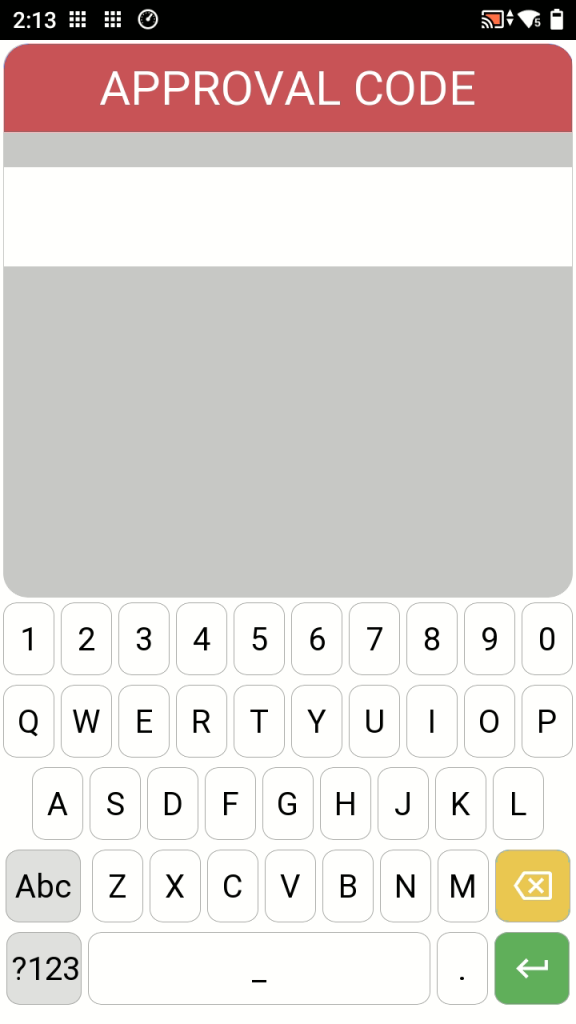
Option 2: Void from Home Screen (Approval Code Required)
- Tap Void
- Enter Approval Code from receipt
- Select transaction and press ok
- Enter manager password
- Customer taps or inserts the original card
- Wait for response
- Void receipt prints
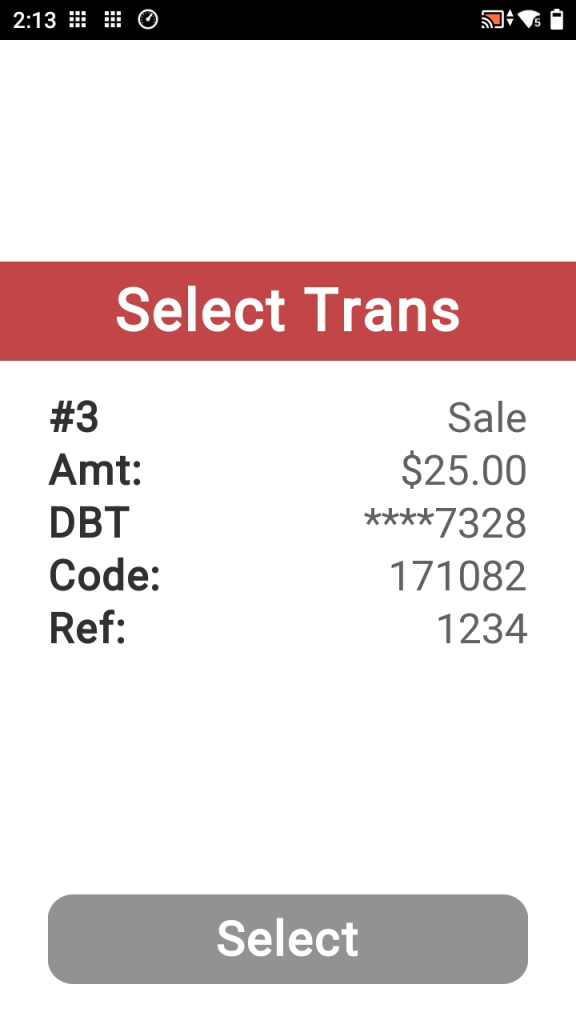
REFUND / RETURN (After Settlement)
Quick rule
- Same day = Void
- After settlement = Refund
Use Return when the batch has already been settled.
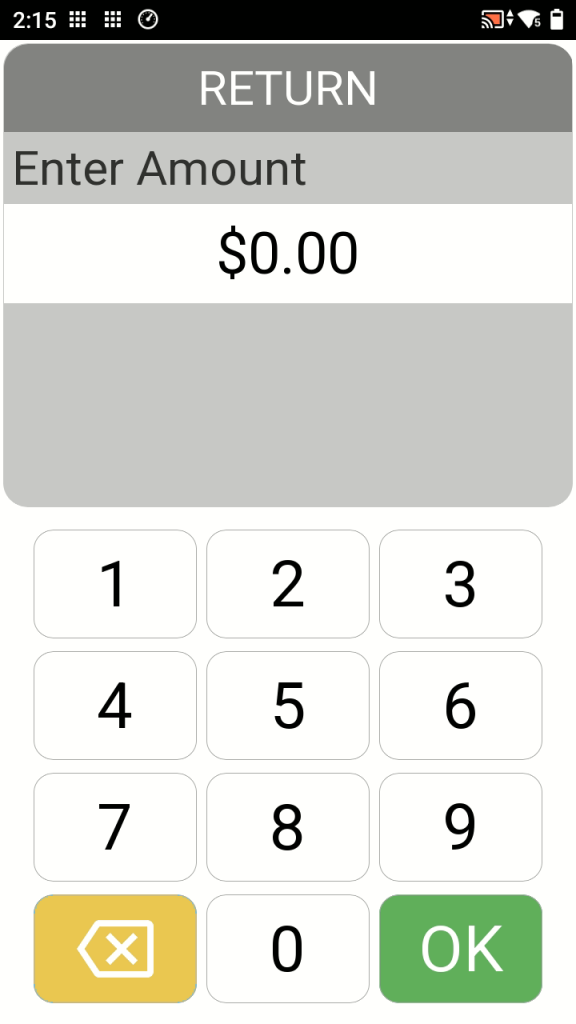
- Tap Return
- Enter the refund amount
- Enter manager password
- Customer to taps or inserts card
- Wait for confirmation
- Refund receipt prints
Refunds take 3–7 business days to appear on the customer’s card.
REPRINT RECEIPT
Favourites -> Reprint Receipt
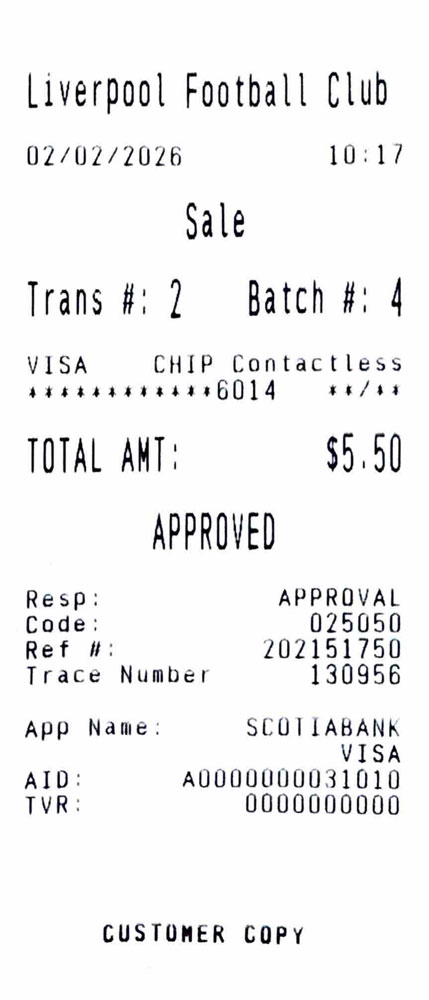
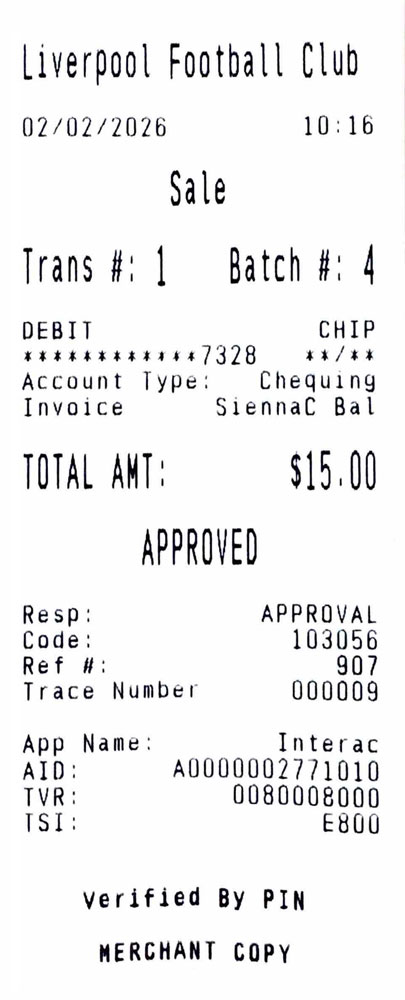
This section explains the information printed on your receipt and when you may need it.
Receipt Line Items You May Actually Need
- Organization’s Name
- Date and time of transaction
- Transaction Type (Sale, Return, Purchase Correction (Void))
- Transaction # and Batch #
- Card type identification & method of entry (chip, tap, swipe)
- Card number and expiry encrypted
- Card account type
- Invoice number
- Amount of transaction
- Response (approved, declined)
- Status of transaction
- Approval Code – Required if voiding from the Aura home screen
- Reference number is unique number assigned to transaction
The remaining items are for records and support. You usually won’t need them.